How to Import a Minecraft World
Get your downloaded world running on Java Edition or Bedrock Edition, on PC, mobile, or console.
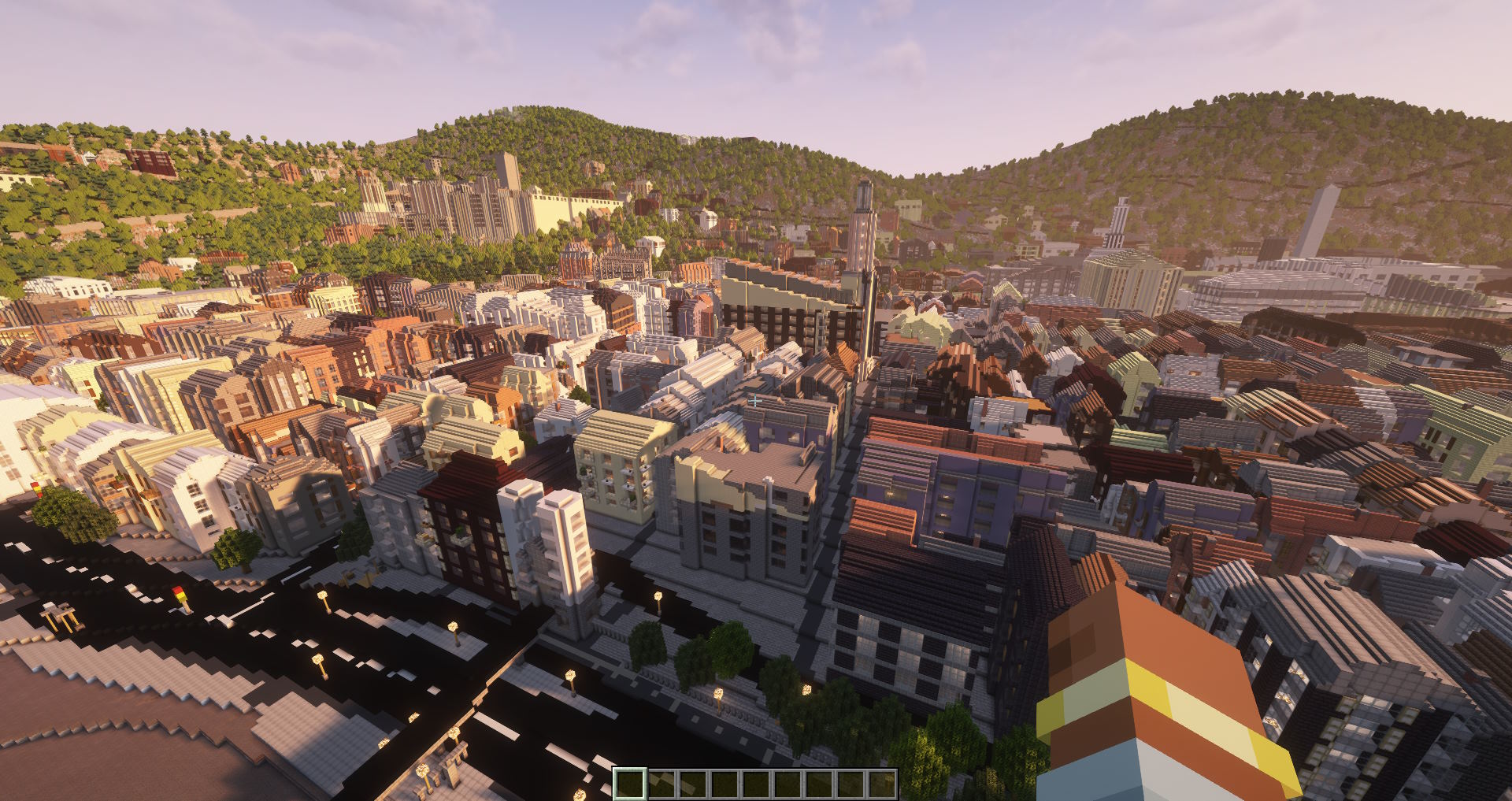
You downloaded a Minecraft world and now you need to get it into the game. The exact steps depend on which edition you play (Java or Bedrock) and which device you are on. This guide covers every common case.
What you downloaded
Before you import anything, check what kind of file you have:
- Java Edition: a
.ziparchive. Inside is a single folder containing the actual world save (the folder will have files likelevel.datand aregion/directory). That inner folder is what Minecraft loads. - Bedrock Edition: a
.mcworldfile. This is the final file, you do not need to unzip it. Minecraft handles the import itself when you open it.
Tip: If you are not sure which edition you have, look at the file extension. .zip means Java. .mcworld means Bedrock.
Java Edition
Java imports work the same way on every operating system: you put the world folder inside Minecraft's saves directory, and it shows up in the world list the next time you launch the game.
Step 1: Extract the .zip
Right-click the downloaded .zip file and choose Extract. Open the extracted folder. Inside it is another folder, and that inner folder is the Minecraft world directory itself. It already contains level.dat, a region/ directory, and everything else Minecraft needs. Do not look any deeper. That inner folder is exactly what you move into saves.
Step 2: Open the saves folder
The saves folder location depends on your operating system:
Windows: Press Win + R, type %APPDATA%\.minecraft\saves, and press Enter. The folder opens in Explorer.
macOS: Open Finder, press Cmd + Shift + G, paste ~/Library/Application Support/minecraft/saves, and press Enter.
Linux: Open your file manager and navigate to ~/.minecraft/saves. The .minecraft folder is hidden by default. Press Ctrl + H in most file managers to show hidden folders. If you use a Flatpak or Snap install, the path may be different (for example ~/.var/app/com.mojang.Minecraft/.minecraft/saves).
Step 3: Move the world folder into saves
Drag the inner world folder (the one containing level.dat) into the saves folder. That's it.
Step 4: Launch Minecraft
Open Minecraft Java Edition, click Singleplayer, and your world will be there. If it does not show up, double-check that you copied the right folder. Minecraft needs the folder that directly contains level.dat, not a folder containing that folder.
Bedrock Edition
Bedrock uses .mcworld files. On most devices you can just open the file and Minecraft will import it automatically.
Windows 10 / 11
Double-click the .mcworld file. Minecraft launches, imports the world, and shows a "World imported successfully" message. The world appears in your world list.
Alternatively, open Minecraft Bedrock first, go to Play > Worlds and click the Import button. Browse to your .mcworld file and select it.
Android
Open the Files app (or your downloads folder) and tap the .mcworld file. Android asks which app to open it with. Choose Minecraft. The game launches and imports the world.
Sometimes a single tap does not show the chooser. In that case, long-press the file and pick Open with or Share, then select Minecraft from the list. If you do not see Minecraft as an option at all, install a basic file manager from the Play Store (such as Files by Google) and try again from there.
iOS / iPadOS
Open the Files app, find the .mcworld file (usually in Downloads or wherever you saved it), and tap it. If a single tap does not open Minecraft directly, tap and hold the file (or use the share button) and pick Open with or Share, then choose Minecraft (the option may show as Copy to Minecraft). The world imports and appears in your world list.
Fallback: If iOS still refuses to open the file, you can install it manually. In the Files app, rename name.mcworld to name.zip, tap it to extract, and move the extracted folder into On My iPhone > Minecraft > games > com.mojang > minecraftWorlds. The folder you place there must directly contain level.dat. This works because .mcworld files are just zip archives with a different extension.
Console (Xbox, PlayStation, Switch)
Consoles do not let you drop files into the game's storage like a PC does. So importing a custom world takes an extra step. Pick the option that matches your platform.
Xbox: the easiest way (MC Addons Manager)
Xbox has a free app called MC Addons Manager that imports .mcworld files directly into Minecraft Bedrock. No Realms subscription, no PC required.
- On your Xbox, open the Microsoft Store and search for MC Addons Manager. Install it (free).
- Open the pre-installed Microsoft Edge browser on your Xbox and download your
.mcworldfile. It will land in the Xbox Downloads folder. - Launch MC Addons Manager. Choose Import (top right), navigate to Downloads, and select your
.mcworldfile. - The app imports it into Minecraft. Open Minecraft Bedrock and your world will be in the list.
Xbox, PlayStation, Switch via Minecraft Realms
Realms is Mojang's official cloud world hosting. You upload your world to a Realm from one device, then download it onto another, including consoles. This is the only built-in method that works on PlayStation and Switch.
- On a PC or phone with Bedrock Edition, import the
.mcworldfile (using the steps above). - Sign in to Minecraft with the same Microsoft account you use on your console.
- Create a Realm (or use an existing one). Open it, click the pencil icon, choose Replace World, and upload the imported world.
- Wait for the upload to finish.
- On your console, sign in with the same Microsoft account, open Minecraft, and join the Realm.
- Inside the Realm world, open the menu and use the Download World option to copy it onto your console's local storage.
About the free trial: Mojang offers a 30-day free Realms Plus trial for first-time users, which is enough for a one-time transfer. The trial is available on Xbox, PlayStation, mobile, and PC, but not on Nintendo Switch. Switch only allows Realms purchases through Minecoins. If you play on Switch, start the trial from a phone or PC signed into the same Microsoft account.
Cross-play via LAN or Friends
If you only want to play the world on your console occasionally and don't need it stored locally, you can import it on a PC and have your console connect to that PC.
- Import the
.mcworldfile on a Windows 10/11 PC. - Open the world in Minecraft and make sure multiplayer is enabled in the world settings.
- On your console, open Minecraft and join via the Friends tab (or local LAN if both devices are on the same network).
This works without Realms, but the PC has to be running Minecraft with the world open every time you want to play. The world never gets copied to the console's storage.
Need a world to import?
Generate a Minecraft world from any real-world location in minutes.
Open MapSmith Download Arnis