How to use Arnis
The free desktop app, from the download to your first real place in Minecraft.
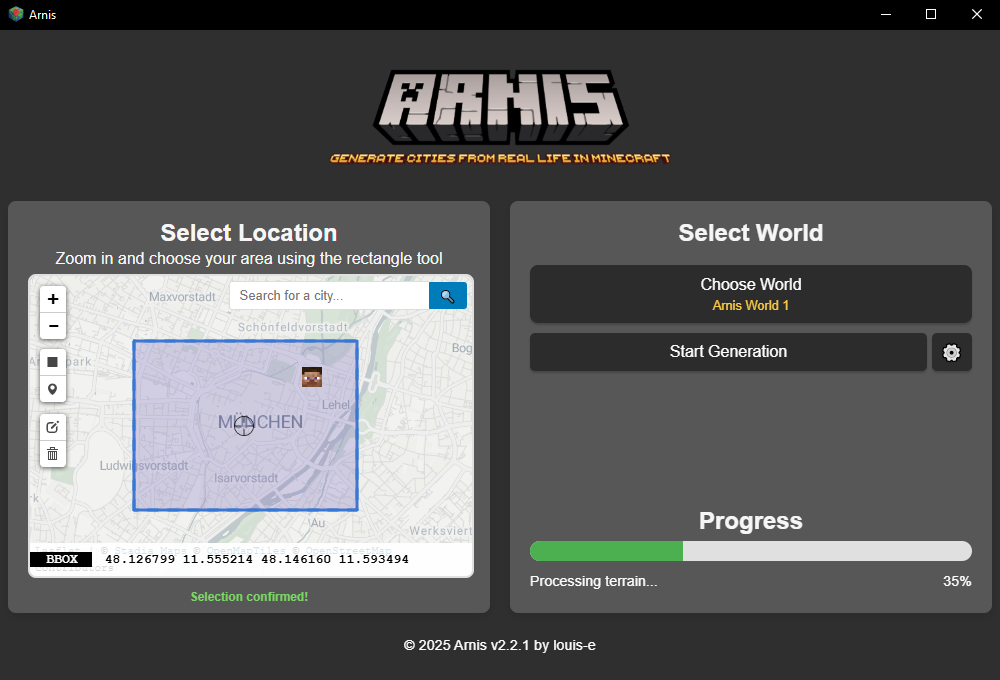
To use Arnis, download the app for your computer, find a place on the map, drag a rectangle over it with the Select area tool, choose Java or Bedrock and click Start Generation. A small neighborhood is ready in seconds, a city center in minutes. The result is a normal world that opens in Minecraft without mods.
Arnis is free and open source. It builds the world from open map data (© OpenStreetMap contributors) and real elevation data, so the detail depends on how well a place is mapped. If a building is missing, see missing buildings and how to fix them on OpenStreetMap.
What you need
- A computer with Windows, macOS or Linux.
- Minecraft Java Edition 1.21.4 or newer, or Bedrock Edition 1.21.0 or newer. For Java I recommend the newest version.
- An internet connection while Arnis generates, because it downloads the map and terrain data for your area.
There is no Arnis app for phones or tablets, so on those devices use the online generator MapSmith as described in Arnis on Android and iOS.
Download Arnis and start it for the first time
Get the newest version from the Arnis releases page on GitHub. Scroll down to Assets and pick the file for your system.
- Windows:
arnis-windows.exe. If SmartScreen warns about the new file, click More info and then Run anyway. Arnis needs the Microsoft Edge WebView2 runtime, which is part of Windows 10 and 11. If the window stays empty, install the Evergreen Bootstrapper from Microsoft. - macOS:
arnis-mac-universal.tar.gz, for Intel and Apple Silicon. Extract it with a double click and try to openarnis-mac-universalonce. Gatekeeper warns you because the app is not notarized by Apple. Close the warning, go to System Settings > Privacy & Security, scroll down and click Open Anyway. - Linux:
arnis-linux.tar.gzorarnis-linux-appimage.tar.gz. The plain binary needswebkit2gtk-4.1from your package manager. The AppImage bundles what it needs.
Why these warnings appear is explained on the page about whether Arnis is safe.
Your first world in five steps
- Find your area. Type a city into the search field, or move and zoom the map.
- Select it. Click the Select area tool in the map toolbar and drag a rectangle over the part you want. Since version 3.5 you can also draw any other shape. A few streets are enough for a first test.
- Pick the format. Click Java or Bedrock, matching the Minecraft edition you play.
- Check the settings (optional). The gear button next to Start Generation opens them. The defaults are fine for a first try.
- Click Start Generation. Arnis downloads the map and terrain data, turns it into blocks and saves the world.
Where the world ends up and how to open it
- Java: Arnis creates a new world named "Arnis World 1", "Arnis World 2" and so on, directly in your Minecraft saves folder (on Windows
%APPDATA%\.minecraft\saves). It finds the folder on its own. Open Minecraft and the world is in your singleplayer list. - Bedrock: Arnis writes a
.mcworldfile to your Desktop and opens it, which imports the world into Minecraft.
Both locations can be changed under Settings > Application. Minecraft does not need to be installed on the computer that generates the world: set the Java save path to any folder and copy the world over later.
By default you start in creative mode at noon, with a map of the whole area in your inventory. To move the world to another device or to a console, follow the guide on how to import a Minecraft world.
The settings worth knowing first
The first two are tools in the map toolbar. The others are behind the gear button, and Arnis remembers them between sessions.
- Spawn point: click where players should start. Without one, a Java world starts you at the corner of the area.
- Rotation angle: draw a line along a street, and Arnis rotates the world so that street lines up with the block grid.
- World Scale: 1.00 is real size, 1 block per meter. Smaller worlds generate faster. Below 0.30, buildings and roads are too small to build, so you only get terrain and land cover.
- Generation Mode: the default, Objects + Terrain, puts buildings, roads and nature on real elevation. Objects only uses flat ground, Terrain only leaves out buildings and roads, and Blueprint draws each building as a light blue outline for you to build on.
- Interior Generation: rooms, furniture and loot chests inside buildings. It is off by default because it is slower.
- Winter and Post-Apocalyptic: two world styles. Winter adds snow and frozen lakes, Post-Apocalyptic leaves buildings partly collapsed and roads cracked. Both work with every mode and can be combined.
Every other option is described on the wiki page Generation Settings.
How big an area can your computer handle?
Generation time and memory use grow with the area. Up to 100 km² is fine. Above that, Arnis shows a color-coded warning for the selection. At World Scale 1.0:
| Selected area | Hint color | What to expect |
|---|---|---|
| Up to 100 km² | Green | Fine |
| Over 100 km² | Yellow | Needs about 4 GB of RAM |
| Over 200 km² | Light red | Needs about 6 GB of RAM |
| Over 500 km² | Red | Needs about 13 GB of RAM |
These are only warnings. To go bigger with the same memory, lower the World Scale: at 0.5 the same area needs about a quarter of the blocks. For areas your computer cannot manage, MapSmith generates Java worlds up to 750 km² on a server, as a paid service.
If something goes wrong
The window is empty or closes right away
On Windows, install the Evergreen Bootstrapper from Microsoft (linked in the download section), which adds the WebView2 runtime the window needs. On Linux, install webkit2gtk-4.1 or use the AppImage.
The generation is stuck at around 10 percent
At that point Arnis downloads the elevation and land cover data. The default elevation source is served through Cloudflare, which some internet providers throttle, so the download stalls instead of failing. Turn on Legacy terrain under Settings > Advanced. It uses the older AWS elevation data (about 30 m) instead. If that does not help either, try a VPN.
The generation finished, but there is nothing in the world
Check that you opened the right world, because the number in "Arnis World N" goes up with every generation, and that your Minecraft version is new enough. Without a spawn point you start at the corner of the area, and the area extends from there toward positive X and Z. If you see terrain but no buildings, look at the Generation Mode and make sure the World Scale is 0.30 or higher.
Minecraft freezes or loads forever when you join
The first time you join a large world, Minecraft has to load and light a lot of chunks. Lowering the render distance and giving Minecraft more RAM usually helps.
For anything else, ask on the Arnis Discord or open an issue on GitHub.
Next: One World and the command line
One World adds every area you generate to the same Java world at its real position, so your neighborhood and the next town join up. You turn it on under Settings > World. Since 3.5 there is also a live mode: Arnis starts a Minecraft server and keeps generating land ahead of you as you explore.
Arnis also runs without its window. Start the same file with arguments and it generates straight from the terminal. The options are listed on the wiki page Command Line Usage.
Generate your first world
The desktop app is free. MapSmith runs the same generator in your browser, for phones and tablets.
Generate it online with MapSmith Download Arnis (desktop)